


ChemDraw
 Views:17774
ChemDraw is a chemical structure drawing software developed by Revvity, Inc. in the United States.
 Requirements
Supported Systems: Windows, Mac
Authorization Method: Register with a Shanghai Jiao Tong University email and authorize via activation code
Latest Version: 25.0.2
Note: Uninstall previous versions of ChemDraw/ChemOffice before running the installer; otherwise, subsequent activation may be affected.
 How to Install
01 Register an Account
1.Go to the ChemDraw registration website:https://connect.revvitysignals.com/sitesubscription/
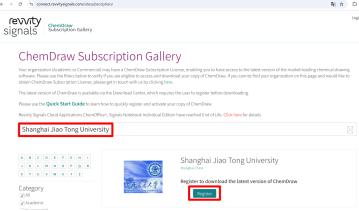
In the search box, type "Shanghai Jiao Tong University" and click Register:
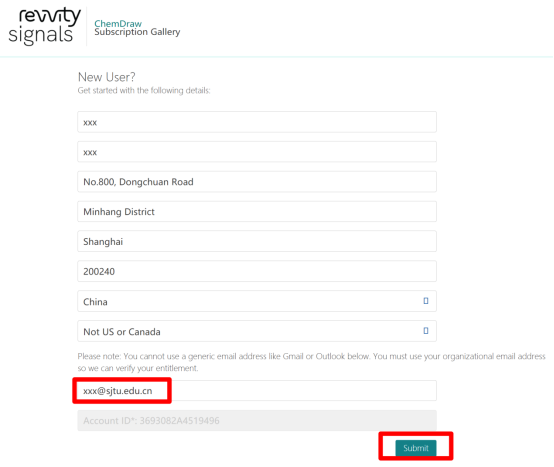
2.Fill in the form and click Submit. The email address must be an official university domain email (@sjtu.edu.cn).
3.After successful submission, you will receive a "Verify your email" message. Click "Verify your email":

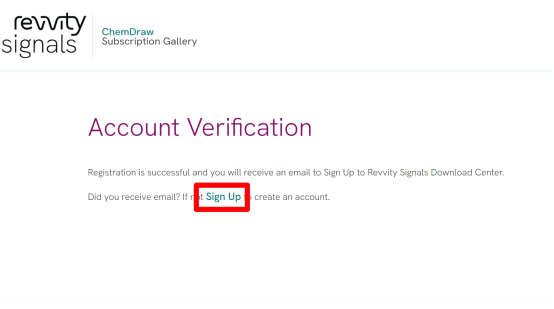
4.You will be redirected to a registration success page. Click "Sign up" to proceed to the download center to register your account.
5.Enter your personal information, set a new password, and click "Continue" to log into the download center.
02 Download
1.After logging in, you will be redirected to the license list page. Click "Download Now", and the system will display the "Download Order" page.
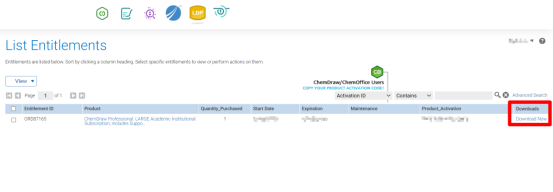
2.Copy the highlighted yellow ChemDraw Activation Code for use during activation. Click on the first line, "ChemDraw Professional", to go to the download page.
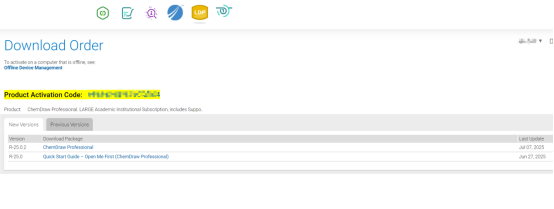
Note: If you need to download an older version, click "Previous Versions" and select the desired one.
3.The following page shows the download location for the ChemDraw software installation package. Windows users should select the first .exe file to download; MAC users should select the third .dmg file to download.
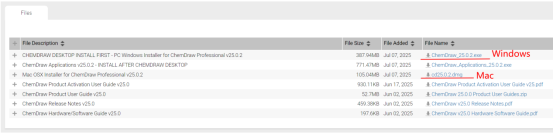
Note:
The second file (ChemDraw Applications) replaces the previous ChemDraw/ChemOffice Suite. During installation, you must install ChemDraw first, then install ChemDraw Applications. After installation, the system will replace the original ChemDraw with ChemDraw Applications, and no reactivation is required.
The remaining files include usage tips, user manuals, installation environment details, etc., which can be downloaded and viewed as needed.
03 Installation
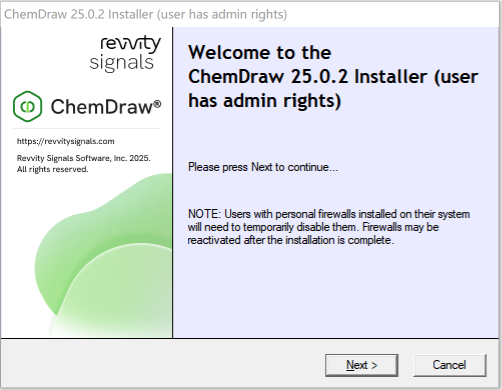
After downloading ChemDraw 25.0.2, right-click the installation file, select "Run as administrator" to open it, and follow the prompts to install.
How to Activate
1.Double-click the ChemDraw icon. Select the second option "Activate", then click "Continue".

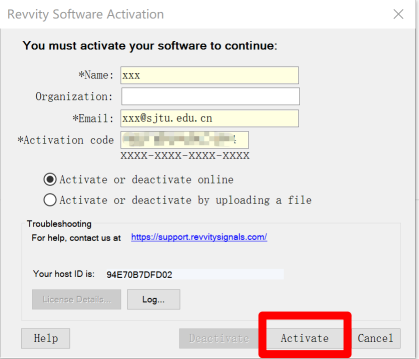
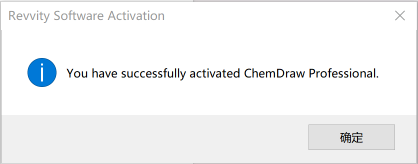
2.In the activation window, enter the required information. In the "Activation code" field, please enter the 16-digit, four-segment code you recorded from the license list page. Finally, click the "Activate" button to complete activation successfully.
 User Guide
Download Link for Software Function Introduction: https://pan.sjtu.edu.cn/web/share/3b7bf3f8218b651241564b041de28262
 Download